There are a couple ways to search for bids within an ePro environment. This is accomplished through either:
In order to use either of the above methods, users should be logged into the Seller role.
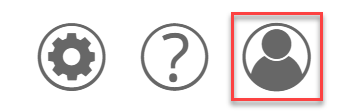
- Click the Account Icon in the upper right of the Homepage
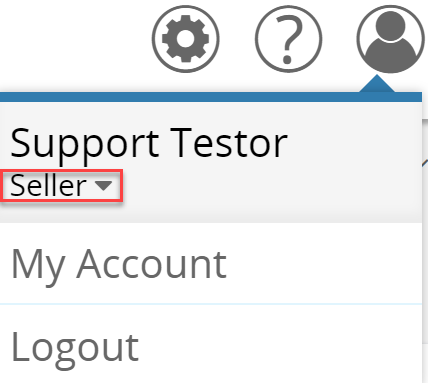
- Click the down arrow under the User Name
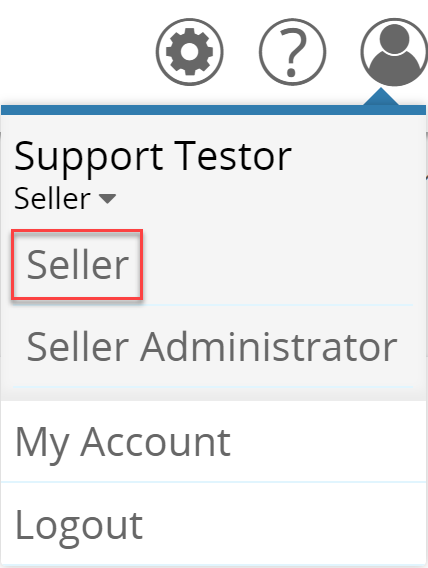
- Select Seller
Drilling into the Bids tab
-
Select the Bids tab

-
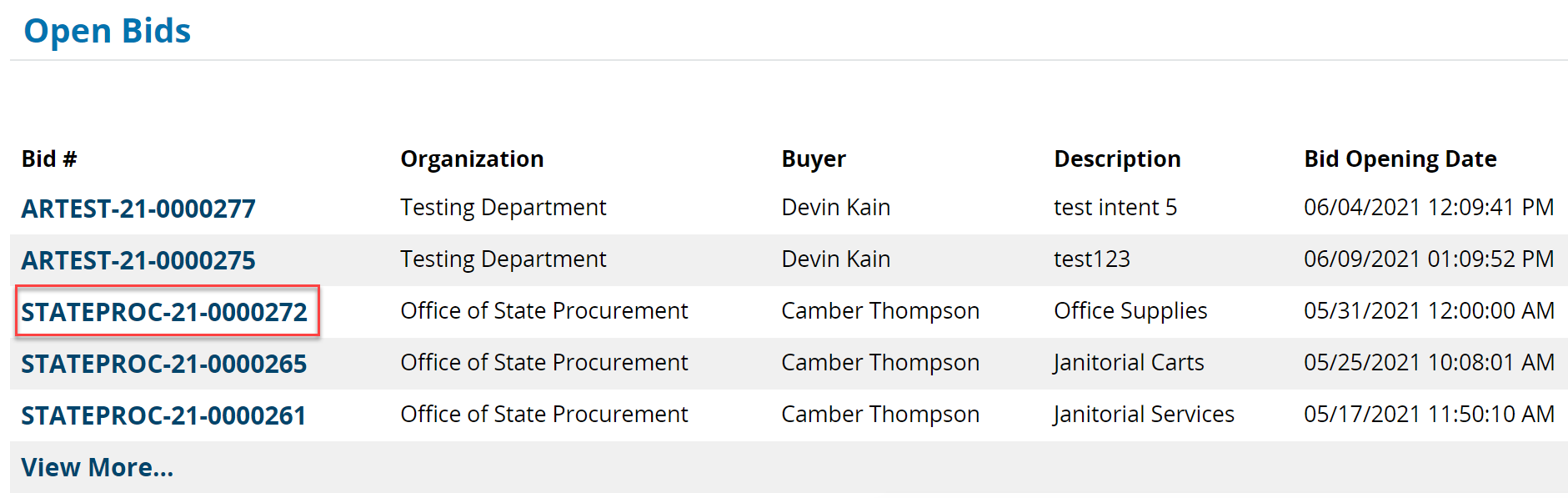
Scroll to the Open Bids section to locate the Bid
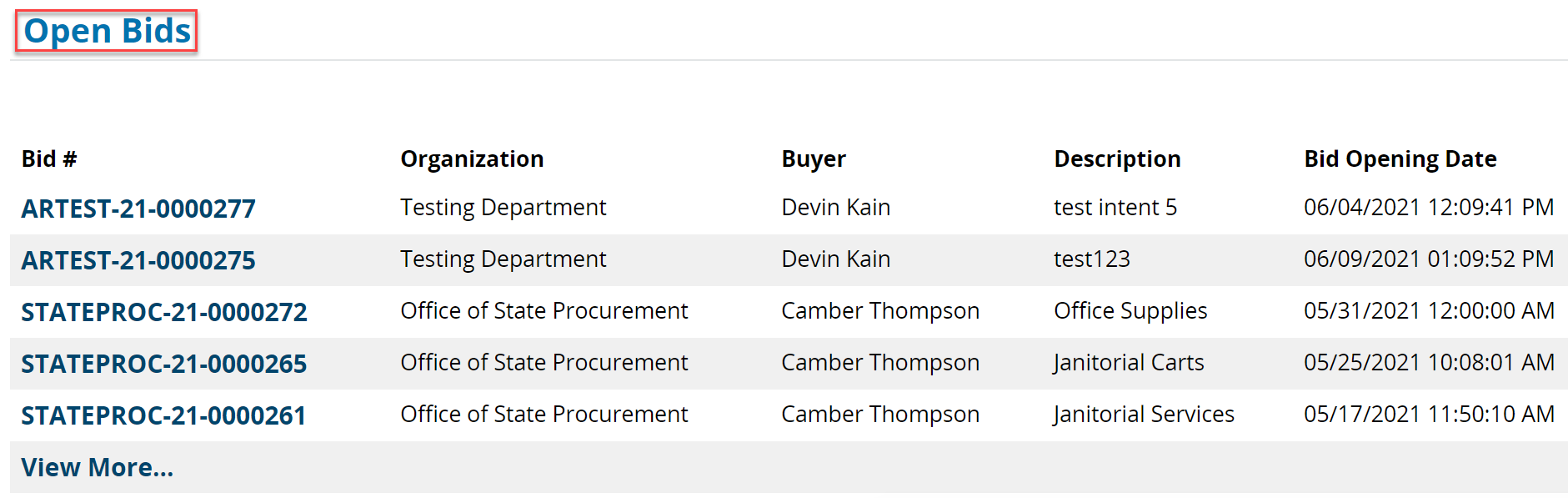
All solicitations that are available for Vendor responses are shown in the Open Bids section until the Bid Opening Date and Time. After the Bid Opening Date and Time has passed, the Bids are displayed in the Closed Bids section (scroll further down the Bids page to view).
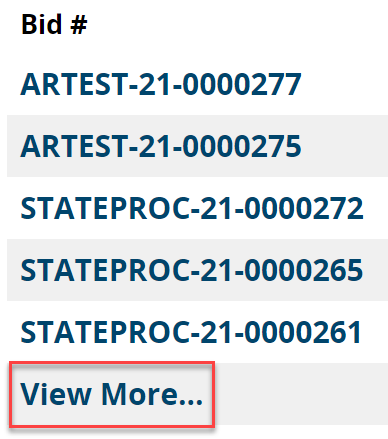
- Click View More... to access additional bids currently open
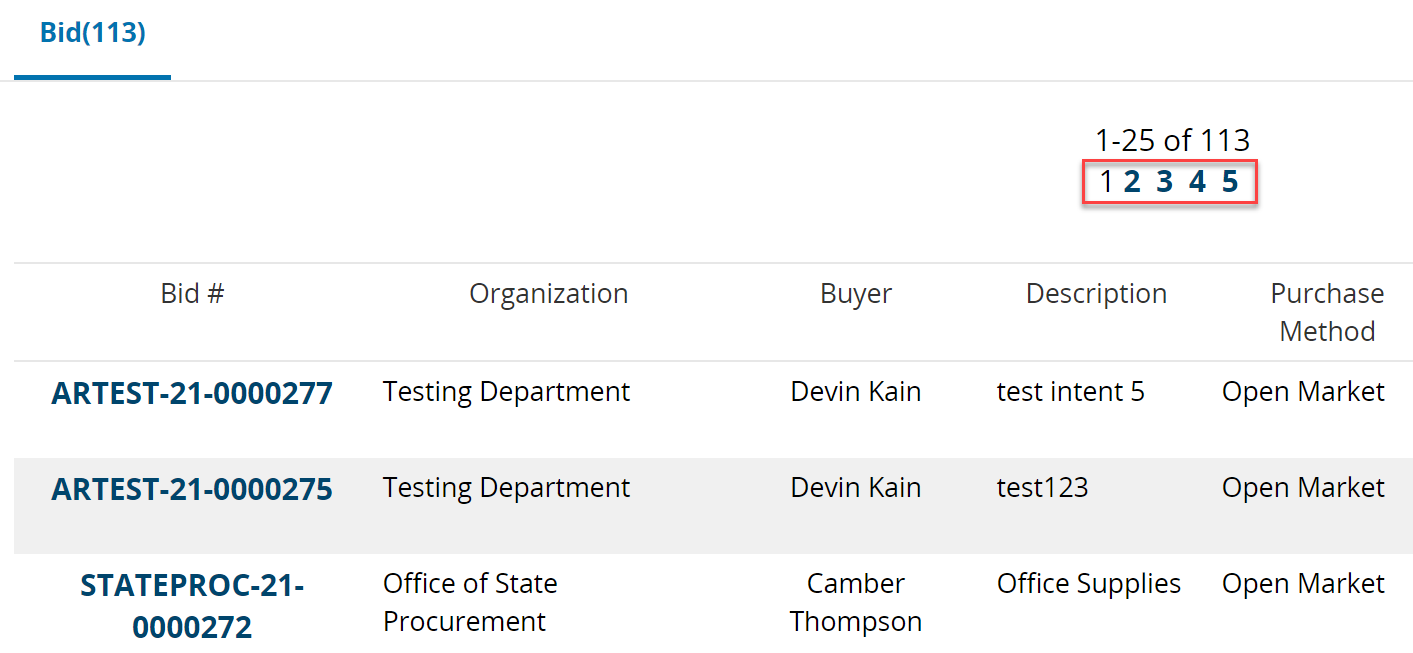
- Scroll down through the bids and click on the next page number to review them all
-
Click the Bid # to view the Solicitation
Advanced Search
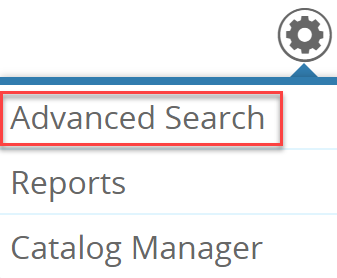
- Click on the Gear Cog icon in the upper right-hand side

- Select Advanced Search from the list of dropdown options
- Click in the Select Document Type... field

- To search for bids by Keyword, select Bid Solicitations
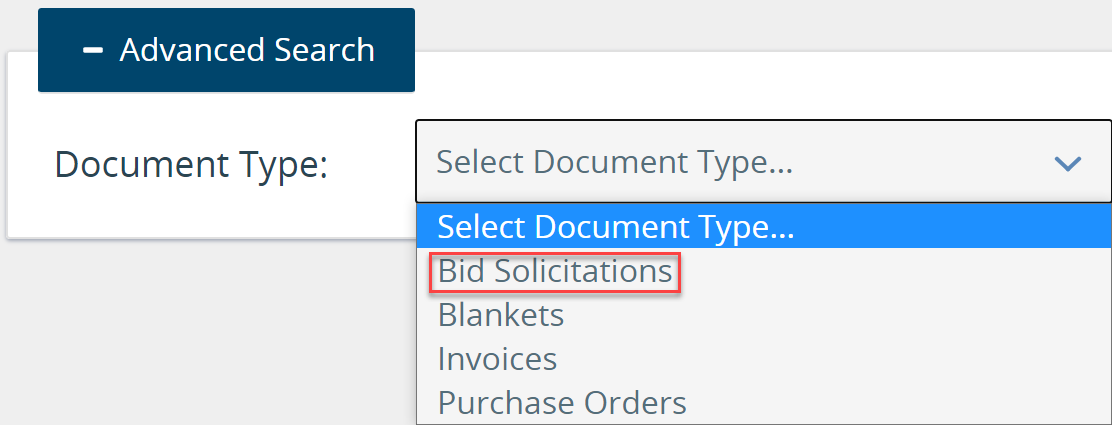
This method may also be used to search for specific Purchase Orders, Invoices or Contacts (Blankets) within the ePro application. - While there are many ways to filter through bid results, the fastest way is if you have a bid number or, if generally looking, to use keywords to search through bid descriptions
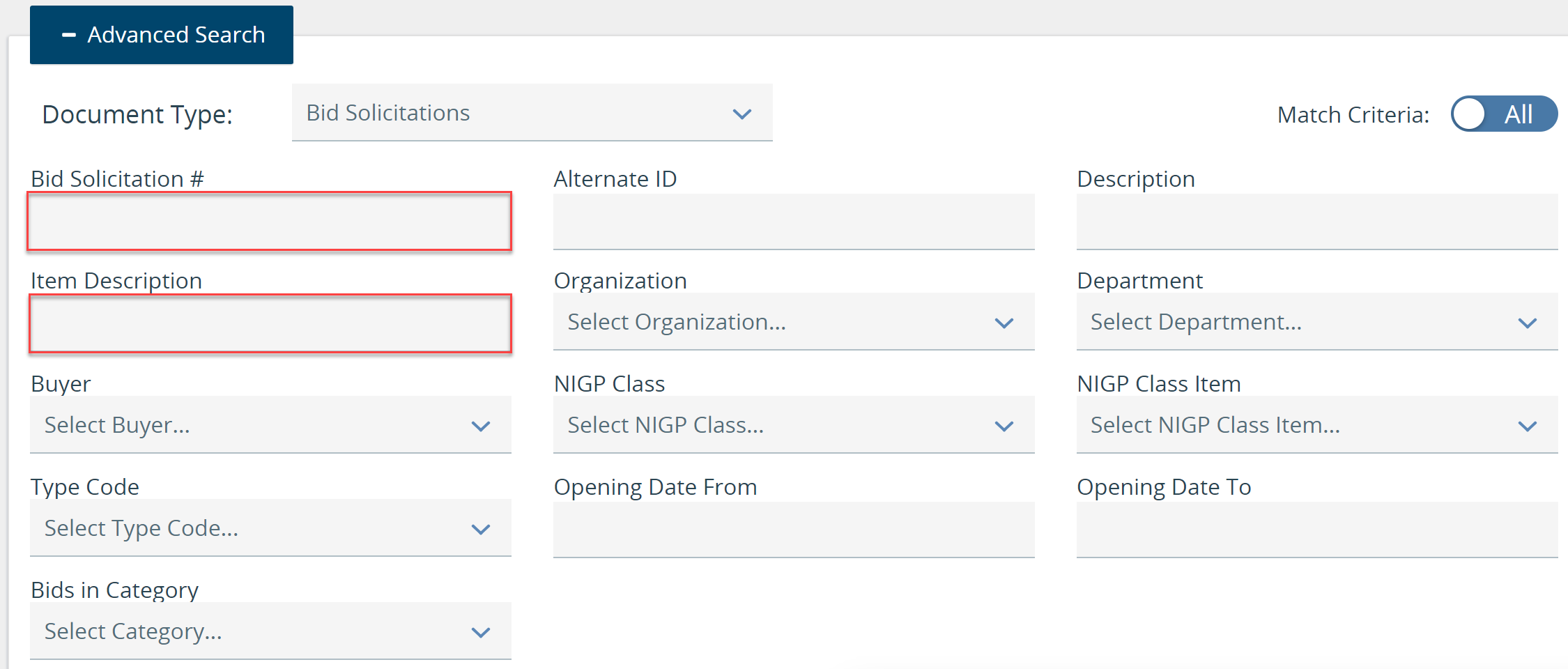
- Once you've entered information into the field, select Search to display the bid results
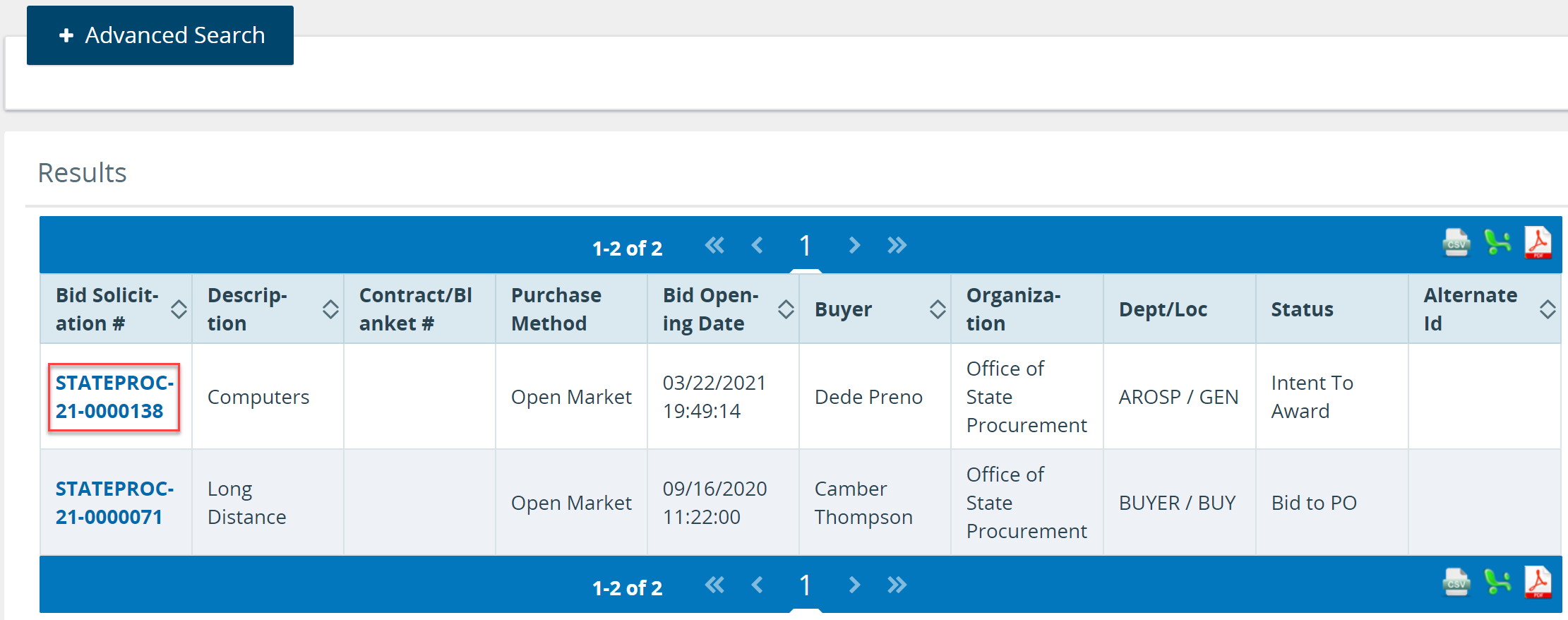
- Then, like the Drill Down method described above, click the Bid number to access the bid
0 Comments